Laptops are wonderfully convenient, but their design creates an ergonomic dilemma. The screen and keyboard are attached, so when the keyboard is at a comfortable typing height, the screen sits too low, and when the screen is at eye level, the keyboard is too high. Many laptop users spend their days looking down at the display with their head tipped forward, which can leave the neck and upper back feeling tired.
The fix is to separate the screen from your hands. The two most common ways to do that are a laptop stand, which lifts the laptop itself, and a monitor arm, which can either hold your laptop on a tray or hold an external monitor while the laptop sits nearby. This guide compares the options.
Quick answer: Choose a laptop stand if you work from different places, want a simple and portable solution, and are happy to use a separate keyboard and mouse. Choose a monitor arm, with a laptop tray or an external monitor, if you have a permanent desk and want maximum adjustability, more desk space and a smooth path to a multi-screen setup.
Laptop Stand vs. Monitor Arm at a Glance
| Factor | Laptop Stand | Monitor Arm (with Laptop Tray or External Monitor) |
|---|---|---|
| What it raises | The laptop itself | A laptop on a tray, or an external monitor |
| Adjustability | Height and angle, often in fixed steps | Height, depth, tilt and swivel; dynamic arms move with a light touch |
| Portability | Many fold flat for travel | Mounted to the desk or wall |
| Desk space | Uses a footprint on the desk | Frees the surface beneath the screen |
| Extra gear needed | External keyboard and mouse | External keyboard and mouse; possibly a monitor |
| Multi-screen potential | Limited | Easy to expand to dual setups |
| Best for | Hybrid and mobile workers | Permanent home or office desks |
Laptop Stands
A laptop stand lifts the laptop so the screen sits closer to eye level. Designs range from fixed-height risers and adjustable folding stands to pivoting desktop holders. Because the laptop keyboard ends up too high for typing, a stand works best when paired with an external keyboard and mouse.
Pros
- Simple, quick setup with no installation
- Many models are lightweight and fold for travel
- Raised design can help airflow under the laptop
- Works on almost any desk, table or counter
Cons
- Height range may not reach eye level for taller users
- Laptop screens are small, so you may still lean in to read
- Takes up desk space
- Adjustments may be in fixed steps
Monitor Arms for Laptop Users
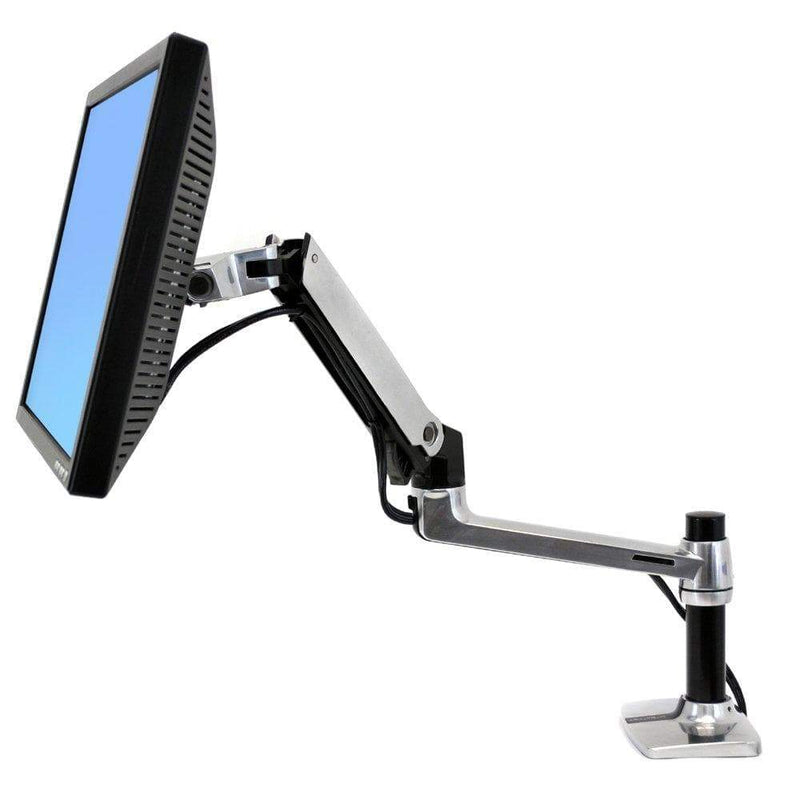
Monitor arms open up two strategies. First, many arms accept a laptop tray that attaches to the VESA mount, letting you float your laptop at the height and distance you want. Second, you can mount an external monitor on the arm and use the laptop as a second screen or close it and use it as a desktop computer with a docking station.
Either way, the arm frees the desk surface below and lets you fine-tune position more precisely than most stands allow. If you use a sit-stand desk, a dynamic arm lets you adjust screen height at each position.
Pros
- Precise height, depth and angle control
- Frees desk space under the screen
- Easy path to an external monitor or dual-screen setup
- Pairs well with sit-stand desks
- A larger external monitor can be easier to read at a comfortable distance
Cons
- Requires mounting via clamp, grommet or wall
- Not portable
- Laptop trays need to match the arm's weight range and VESA pattern
- An external monitor is an added purchase
Don't Skip the Keyboard and Mouse
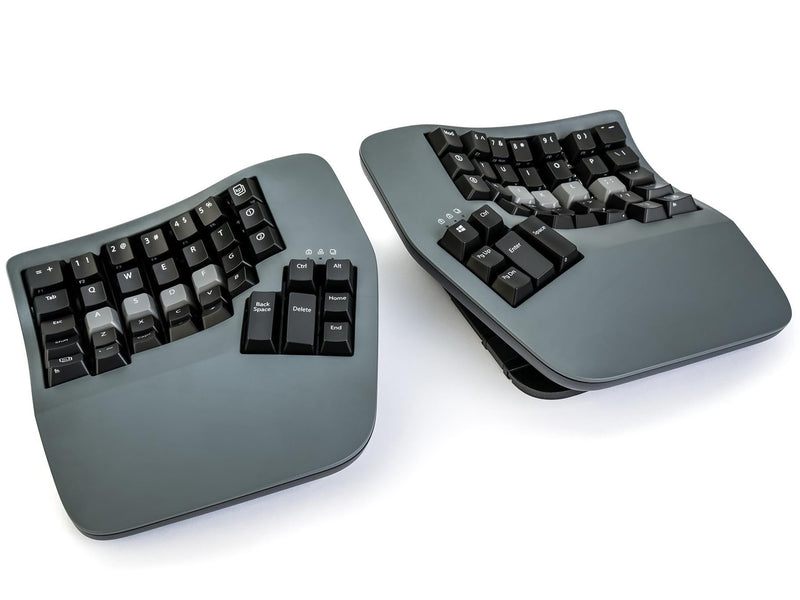
Whichever route you pick, raising the laptop makes its built-in keyboard and trackpad awkward. Plan on a separate keyboard and mouse positioned at elbow height, close to your body. Compact keyboards without a number pad keep the mouse closer to your centerline. If your desk is tall, a keyboard tray can bring both down to a comfortable height. Our Workspace Calculator estimates where your keyboard and screen should sit for your body.
Setting the Right Screen Height
A common guideline is to place the top of the screen at or slightly below eye level, about an arm's length away, with a slight backward tilt. If you wear bifocals or progressive lenses, a lower screen position may be more comfortable so you do not tilt your head back. Laptop users with an external monitor should place the screen they use most directly in front of them and the secondary screen to the side.
Need help matching an arm to your monitor or laptop tray? Try our Monitor Arm Finder.
Who Should Choose Which
Choose a laptop stand if:
- You split time between home, office, coworking spaces and travel
- You want a no-installation solution
- Your laptop is your only screen and you are comfortable with its size
Choose a monitor arm if:
- You have a dedicated desk you use most days
- You want precise positioning and a clear desk surface
- You plan to add an external monitor or already have one
- You use a sit-stand desk
Many hybrid workers do both: a monitor arm and external screen at their main desk, and a folding laptop stand in their bag.
Frequently Asked Questions
Is a laptop stand enough on its own?
A stand improves screen height, but typing on a raised laptop keyboard is uncomfortable. For extended work, pair the stand with an external keyboard and mouse.
Can I mount a laptop on a monitor arm?
Yes, with a laptop tray accessory designed for VESA mounting. Make sure the combined weight of the tray and laptop falls within the arm's supported range.
Will raising my screen fix neck pain?
Raising the screen may help you avoid looking down for long periods, which many ergonomists recommend. It is not a medical treatment, so consult a healthcare provider about persistent pain.
Shop Laptop Solutions
Browse laptop and tablet mounts, explore monitor arms, and add a comfortable external keyboard from our keyboard collection. All orders ship free.