One screen rarely feels like enough once you start juggling spreadsheets, chat, reference documents, editing timelines or a game alongside a stream. Adding a second or third monitor solves the space problem on screen, but it can create a new one on your desk: bulky factory stands, tangled cables and displays that never quite line up with your eyes. A good dual or triple monitor stand fixes all of that. Here is how to choose one and set it up so it actually makes your day more comfortable.
What a Monitor Stand Does
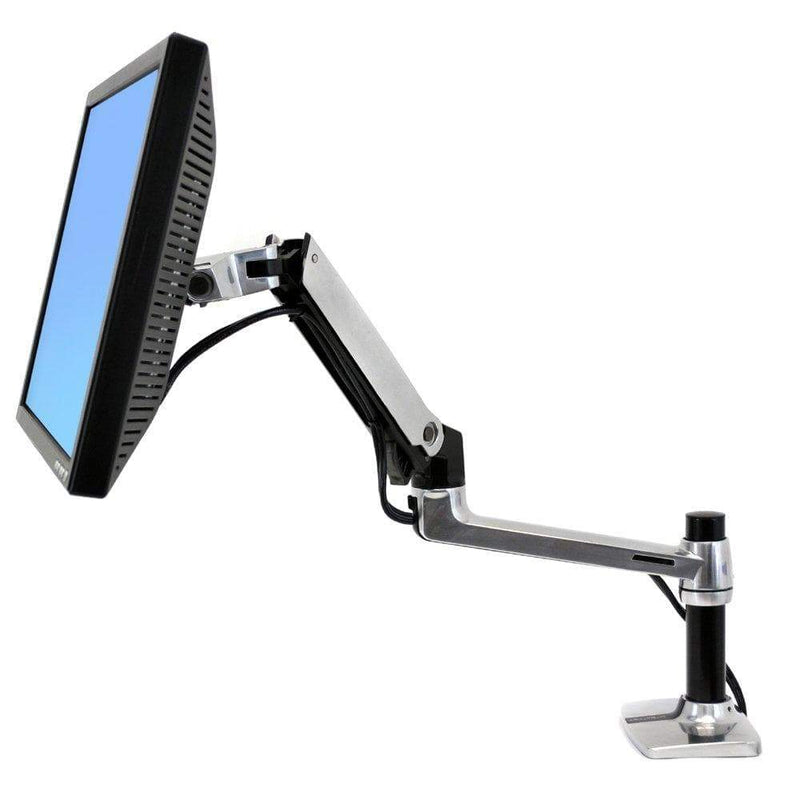
A monitor stand (also called a monitor mount, bracket or arm) replaces the stand that came with your display. It holds one or more screens on a shared post or arm system, usually through the standard VESA mounting holes on the back of the monitor. Instead of being stuck with whatever height and angle the factory stand allows, you can raise, lower, tilt, swivel and rotate each screen until it fits your body and your work.
Stands come in two broad styles:
- Freestanding stands sit on a weighted base. They need no drilling or clamping, which makes them easy to move and ideal for desks with thick or irregular edges.
- Desk-mounted arms attach with a clamp or through a grommet hole. They free up more surface area and often offer a wider range of motion, including gas-spring height adjustment.
Both styles are available for one, two, three or even four screens. Browse monitor stands for freestanding options or monitor arms for clamp and grommet mounts.
Why a Multi-Monitor Setup Is Worth Getting Right
Less window juggling
Spreading your work across screens means less time hunting through tabs. Many people keep primary work front and center, with email, messaging or reference material off to the side.
Better posture, less strain
When screens sit too low, most of us crane our necks forward and round our shoulders without noticing. Raising displays so the top of the screen is at or slightly below eye level can help reduce neck and upper-back strain over a long day.
A cleaner desk
Lifting monitors off the desk surface opens up room for a keyboard, notebook or a second device, and integrated cable routing keeps wires from turning into a tangle.
What to Look for in a Dual or Triple Monitor Stand
Weight capacity and screen size
Check two numbers for every screen: its weight without the factory stand and its diagonal size. A stand's capacity is listed per arm, so make sure each monitor falls within it with some margin to spare. For a triple setup, also confirm the combined width of three screens fits the stand's span, especially with larger 27-inch or ultrawide displays.
VESA compatibility
Most monitors use a 75 x 75 mm or 100 x 100 mm VESA pattern. If your display has no mounting holes, you may need an adapter, so check before you buy.
Stability
A heavy, wide base or a solid clamp keeps screens from wobbling when you type or bump the desk. For triple setups, stability matters even more because the outer screens act like levers.
Adjustability
Look for independent tilt, swivel and rotation on each screen so you can angle side monitors inward and switch any display to portrait mode for coding, reading or long documents. Height adjustment on the post or arm lets you match the screens to your eye level, whether you sit or stand.
Tension control
Arms that use springs or friction joints usually include a tension adjustment. Setting it correctly keeps each screen exactly where you leave it without drifting up or sagging down.
Cable management
Built-in clips or channels along the arms keep power and video cables tidy. If your setup has a lot of wiring, add a few cable management pieces under the desk as well.
Quick-release plates and security
Quick-release VESA plates make it easy to swap or remove a screen without taking the whole stand apart. In shared offices or public spaces, some stands offer locking hardware to deter theft.
How to Set Up Your Stand
- Plan your layout. With two screens of equal size, center the seam between them in front of you if you use both equally. If one is your main screen, put it directly in front of you and the second off to the side.
- Attach the VESA plates to each monitor with the screws provided, then mount the screens on the stand.
- Set the height. Sit (or stand) in your normal working posture. The top of each screen should sit at or just below eye level. If you wear progressive lenses, a slightly lower position is often more comfortable.
- Set the distance. A good starting point is about an arm's length away. Larger screens may need to sit a little farther back.
- Angle the side screens. In a triple setup, curve the outer monitors inward so all three form a gentle arc and each faces you.
- Adjust tension. If a screen drifts, tighten or loosen the tension adjustment according to the manufacturer's instructions until it stays put.
- Route the cables through the stand's channels and leave enough slack so the arms can move freely.
Who Benefits Most
Multi-monitor stands are popular with software developers, designers, video and photo editors, traders, analysts, IT professionals and gamers. Really, they help anyone who regularly works across several windows at once. Even if you only use two screens a few hours a day, getting them to the right height and angle can make a noticeable difference to how you feel at the end of the day.
Find the Right Stand for Your Desk
Whether you need a simple two-screen stand or a full three-screen arc, start by measuring your monitors and your desk, then pick a stand with the capacity, adjustability and mounting style that fits. Explore our triple monitor arms and dual monitor arms. Shipping is free on every order, and teams outfitting several workstations can request a volume quote.